Instructor:
Treadway, Dwayne C.
Date:
January 9, 2021
Information:
Quick Glance:
Assignments: ART 117 - Design For The Web II |
||||
|---|---|---|---|---|
Home Page // Assignments // Notes Page // Paper Page // Links Page // Cpanel // Maps // Books // SVGs |
||||
| Date: | Assignments: | |||
| Foundation 5 | ||||
| Week 1 |
|
|||
| Week 2 |
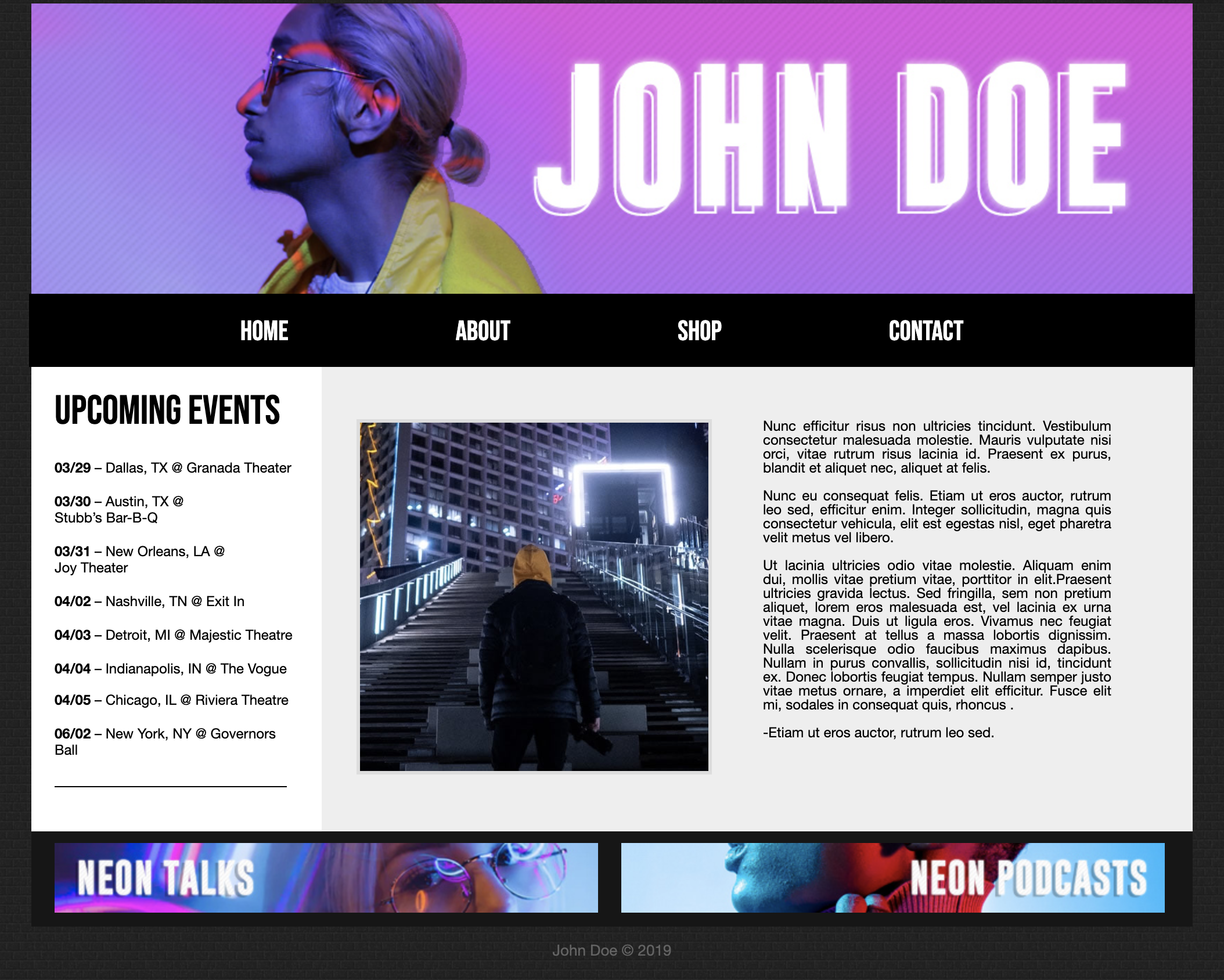 |
|||
| Week 3 | Homework 3 -- PDF
Exercise #3: Create a CSS Layout Using Positioning In this exercise we will recreate page to match the following example at the end of document. Criteria. #1 Sketch it out, and wireframe what the layout looks like. It is recommended that you label the wireframe so you understand where to place your DIVs. Image files to download and use in your layout: banner_117.jpg flower.jpg logo_117.jpg butterfly.jpg
REMINDER ABOUT STYLING IN DREAMWEAVER: Choose your CSS file in the "Sources" area of the CSS Designer panel. Click on the name of the Selector you want to edit and change its attributes in the Properties section. For ALL DIV semantic tags: Delete the placeholder text Dreamweaver adds. (You may find it easier to do in code view.) #2 Open and save a new blank html document; you will structure your page with semantic tags (HTML5), and a new DIV. You will use classes and redefine tags to adjust the layout and appearance. Make sure to work on Split View since you need to insert semantic tags through the code. We will create a new style sheet while we are inserting the first element. Start by creating one main DIV element in the body of the document that will contain all of your ot ]\her content. When the "Insert Div" dialog box appears, type in "wrapper" for the ID field and make sure you click on the "New CSS Rule" button (see images below). **Please note that container and wrapper are one in the same. Some resources will call it "container" other resources will call it "wrapper." You may use either.** Go to the bottom of the dialog box and change the Rule Definition drop down to (new style sheet file). Click "OK" to get to the Save Style Sheet File As dialog box. Save the new CSS document as: ex4csslayout.css. Save it with your html document. You will get to the CSS Rule Definition dialog box where you'll click OK. After this, it will bring you back to the Insert DIV dialog box, which will now have "wrapper" in the ID location. Click OK. This will add the #wapper ID to the html document. Now that is it set up in your style sheet, go to the CSS Designer panel and edit the #wrapper using the following settings: Layout: Margins Top=0, Right= Auto, Bottom=0, Left=Auto Positioning: Relative, width 960px #3 Insert a nav element inside the #wrapper (Insert->Structure->Navigation). Select the css document in the CSS Designer panel, then click the plus (+) icon in the Selectors location of the panel, type nav in the highlighted area. When it is added, edit the nav attributes using the following settings: Layout: Height 50px Border: Top Color = #2F4820, Top Width = 3px, Top Style - Solid , Radius - left Top 10px, right Top 10px. Background: Color #FFFFCC NOTE: The "wrapper" div will need to wrap around all of the other tags. It will be the outer most element. #4 Select the css document in the CSS Designer panel, then click the plus (+) icon in the Selectors location of the panel, type header in the highlighted area. Insert a header tag below the nav. Create the same way you did the nav. (It is recommend that you go to Code view and place the cursor directly after the closed tag for the nav. This will make sure the header is inserted in the correct location.)
Edit the header tag using the following settings: Layout: Height 150px, Margin Top 0px Background: Color #FFFFCC, BG image: banner_117.jpg, Make sure the background image is set to: No Repeat
#5 Select the css document in the CSS Designer panel, then click the plus (+) icon in the Selectors location of the panel, type aside in the highlighted area. Insert a aside. Edit the aside tag using the following settings:
Layout: Background-color: #FFC, Padding: 10px, Float: right, Height: auto, Width: 190px, Margin-left: 10px Text: Color: #4D292D, Line Height = 18px ** Copy and paste the following into the aside. Make sure that the paragraphs are wrapped in p tags (may need to perform this step yourself if you are pasting into the source code): Donec nec dolor pretium ipsum vehicula dapibus. Quisque dapibus varius dolor consequat eleifend. Nunc imperdiet justo id eros placerat ac semper quam lacinia. Maecenas dictum pretium justo eget pulvinar. Vestibulum tincidunt felis vel nunc bibendum at rutrum velit tempus. Donec mattis, mi ac tristique congue, quam massa viverra turpis, a volutpat tellus mi vitae nisl. Etiam vestibulum ornare lectus eget imperdiet. Suspendisse id urna sapien, in placerat purus. #6 Select the css document in the CSS Designer panel, then click the plus (+) icon in the Selectors location of the panel, type section in the highlighted area. Insert a section tag after the aside. Edit the section tag using the following settings: Layout: Width = 725px, Margin Top = 10px, Float = Left, ** Copy and paste the text below into the section. Make sure that the paragraphs are wrapped in p tags (may need to perform this step yourself if you are pasting into the source code). Morbi molestie volutpat magna, in consectetur tortor adipiscing nec. Etiam malesuada dolor ac elit facilisis fringilla. Etiam dapibus metus quis libero hendrerit euismod a non leo. Aenean sed leo dignissim arcu lacinia gravida. Suspendisse potenti. Pellentesque eu tellus mauris, vel laoreet magna. Fusce arcu dolor, sodales ut dictum a, dapibus a arcu. Nam cursus pharetra commodo. Nulla facilisi. Vivamus mattis vehicula tellus, in lacinia elit consectetur eu. Sed ac turpis enim. Donec nec dolor pretium ipsum vehicula dapibus. Quisque dapibus varius dolor consequat eleifend. Nunc imperdiet justo id eros placerat ac semper quam lacinia. Maecenas dictum pretium justo eget pulvinar. Vestibulum tincidunt felis vel nunc bibendum at rutrum velit tempus. Donec mattis, mi ac tristique congue, quam massa viverra turpis, a volutpat tellus mi vitae nisl. Etiam vestibulum ornare lectus eget imperdiet. Suspendisse id urna sapien, in placerat purus. Aenean ut faucibus leo. Morbi lacinia scelerisque dolor a convallis. Nulla facilisi. Fusce facilisis purus non dolor dapibus eu interdum erat pellentesque. Aenean vestibulum tincidunt nunc. #7
Insert a footer tag after the section tag. Edit the footer tag using the following settings: Layout: Height 60px, Padding Top = 15, Left = 15, Clear = Both Text: Font Lucida Grande, Size 12px, Color #4D292D Border: Bottom Color = #2F4820, Bottom Width = 3px, Border Bottom Style - Solid , Radius - left Bottom 10px, right Bottom 10px. Background: Color #FFFFCC ** Copy the following into the footer: Contact Us | Portfolio | Service | About Us | Copyright | Add Date Highlight each and apply the # in the Link field. (Doing this will create a false link that will show the style). The copyright and date do not need links. (Reminder: Always make sure you are in the css document when you add tags or styles.) #8 Click the + in the Selectors area and add the body tag to the CSS document. Redefine the body tag with the following: Layout: Margin - All = 0, Padding All = 0, Text: Font - Lucida Grande, etc..., Size - 15px, Color #2F4820
#9 Click the + in the Selectors area and add the html tag to the CSS document. Redefine the html tag with the following: Layout: Padding - All = 0px, Margin - All = 0px #10 Click the + in the Selectors area and create a new style: nav a. Inside the nav tag and type: About Us Services Portfolio Contact Us Highlight each and apply the # in the Link field. (Doing this will create a false link that will show the style). Apply the following settings: Layout: width - 100px, Margin All - 2px, Padding All - 5px, , Float - Left, Text: Font - Lucida Grande, etc..., Color #2F4820, Text Decoration - None, Text Align - Center #11 Click the + in the Selectors area and create a new style: header h1. Apply the following settings: Layout: Height - 50px, Margin - Top 50, Padding - Left 245, Float - Right, Background: Image - logo_117.jpg, No Repeat
Click inside the header tag and apply the h1 Format (add H1 tags inside the header tags). #12
Click the + in the Selectors area and create a new style: section p. (You should see a change in the <p> content in the section.) Apply the following settings: Layout: Padding Top = 0px, Left and Right = 15px, Bottom = 0px #13
Click the + in the Selectors area and create a new style: section h1. Apply the following settings: Layout: Padding - Top = 0px, Right = 0px, Bottom = 5px, Left = 15px, Margin All = 0px Text: Color ** Above the first paragraph type About Us and apply the h1 tag. In the second paragraph type Services and apply the h1 tag. #14
Click the + in the Selectors area and create a new style: aside h1. Apply the following settings: Layout: Margin - Top = 0px (this will remove the excess space) Text: Font Style = Color #829F69, Font Size: 22px
** Above the paragraph type Latest News and apply the h1 tag. #15
Click the + in the Selectors area and create a new style: footer a. Apply the following settings: Text: Color #2F4820, Text Decoration - None #16 Click the + in the Selectors area and create a new style: nav a:hover. Text: Color - #FFFFFF Background: Color - #4D2316 ** You'll be able to see the rollover when you preview in the browser.** #17 Click the + in the Selectors area and create a new style: footer a:hover. Text: Color - #4D2316, Font-weight: Bold, Text Decoration - underline ** You'll be able to see the rollover when you preview in the browser. #18 Click the + in the Selectors area and create a new class: .photoright. Apply the following settings: Layout: Width = 125px, Height = 150px, Margin Left = 5px, Padding Top, Left, Bottom = 5px Right = 10px, Float = right, Background color = #104E00, Box - Shadow h-shadow = 3px, v-shadow = 3px, color - #000000 Place the cursor after the close of the About Us heading in your main section and insert the class. Insert flower.jpg image into the content area of the .photoright class inserted next to About Us. **Remove the written content.** Put the cursor after the close of the Services heading in your main section and insert the class. Insert butterfly.jpg image into the content area of the .photoright class inserted next to Service. **Remove the written content.** Screen Shot 2019-09-04 at 8.46.03 PM.png
|
|||
| Week 4 | Exercise #4: CSS3 and Web Fonts
CSS Assignment | Ultimate CSS Gradient Generator
Criteria. Using the attached files and a css3 generator of your choosing, the Dreamweaver CC -CSS Designer panel, apply at least three css3 attributes to each of the 3 boxes, for a total of nine different visuals. (Note: you will need to link to the attached box.css file in the CSS Designer panel.) Below is a list of a few popular CSS3 properties:
Next, choose three different Dreamweaver CC-Adobe Edge Web fonts or Google web fonts (Links to an external site.) and apply one to each of some of the text in the three boxes. You will need to replace the current font-family: Verdana, Geneva, sans-serif; in the code with the new web font names. Note: you will also need to copy the line of code Google web fonts https://www.w3schools.com/css/css_font_google.asp (Links to an external site.) gives you and paste it into the <head> element of your exercise file. (This code links to the stylesheets for your fonts on Google's web server.) Submission.
|
|||
| Week 5 | Design Research 1 Requirements: I will be looking for your:
The instructor will review the research after the first week of the project and offer guidance. After comments, you will want to amend your research, update the document, and resubmit to your server location for final review when the final project is submitted. Submission:
Project #1: Bootstrap Website
You are to create a unique bootstrap website using the content from National Parks system (Links to an external site.) or NASA (Links to an external site.) or approved topic. The written/photo content from either National Parks System or NASA can be used on your site, but the design cannot be like the actual sites. It must be completely different. Do not use the organizations logos. If another topic is selected all content must be written and images royalty free. Your site design should offer content that is rich, extensive and relevant enough to the intended audience to generate and sustain interest. The site should encourage and enable its audience to take the actions which promote the agency interests: i.e., to visit, attend, join, call, buy, e-mail, request, send information, etc. You will also be creating research assignment for the site. Site Requirements:
|
|||
| Week 6 |
Create two functional image galleries (sliders/slideshows). The image gallery you create should have the following characteristics:
Also, explore the web and list one other slideshow creation technique and link to it in the document. Then, briefly describe how it differs from the one you used and its pro and cons.
Submission.
https://screensiz.es/tablet This is a good resource that shows the sizes of phones, dvices, etc.
https://css3clickchart.com/ This chart has some good CSS stuff
https://www.webfx.com/web-design/random-color-picker/#2867A7 Just hit the spacebar and get a lot of colors. It is cool.
Resources:
Week 7
Create a Photoshop mock-up of your Landing Page to your Project 1 Bootstrap Site. Save as jpg and link to Exercise 7. |
|||
| Week 7 | October 7, 2020 | Exercise #6: Bootstrap
Using the Bootstrap videos from Atomic Learning , build a responsive layout using a grid system for two pages:
You may include fictional information and photos. Use the examples to help guide you. Include the following information:
Use the Following Steps to assist you:
|
||
| Week 8 | ||||
| Week 9 |
|
|||
| Week 10 | November 18, 2020 |
https://www.visualcapitalist.com/our-top-infographics-of-2018/ (Links to an external site.) https://makeawebsitehub.com/best-infographics/ (Links to an external site.) https://graphicmama.com/blog/infographic-design-trends-2018/
INTERACTIVE INFOGRAPHIC STORYBOARD Create a storyboard for your interactive infographic showing what happens when there is an interaction. If you have repetitive information and interactions, you only need to storyboard one set of interactions. See sample storyboards attached. Please know this can be on a single page that scrolls. Save Infographic as jpg and place on html page. Link to your index page. |
||
| Week 11 | ||||
| Week 12 | ||||
| Week 13 | ||||
| Week 14 | ||||
| Week 15 | ||||
| Week 16 |
|
|||